
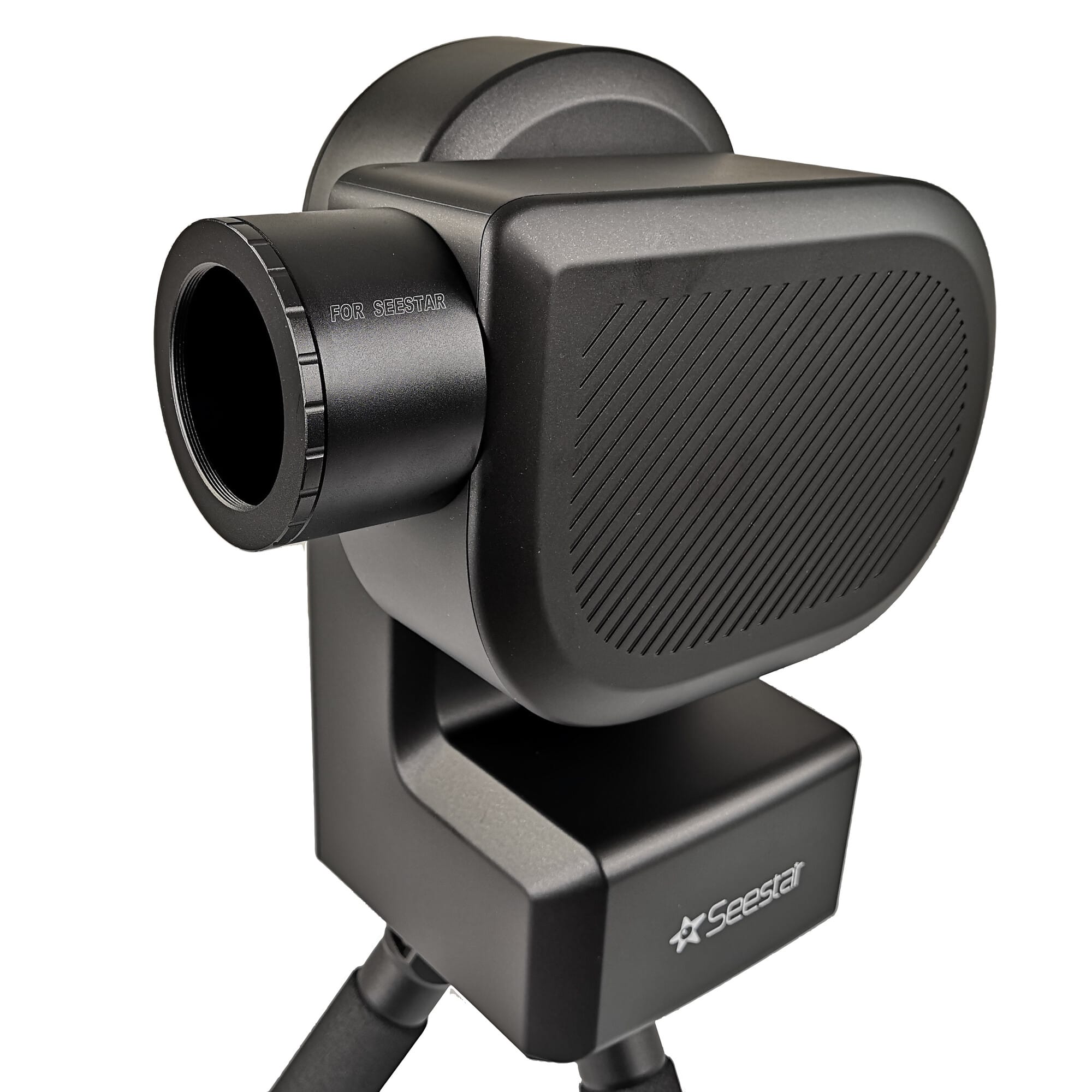
Seestar S50 Tips from Telescoop.co.uk
The Seestar S50 tips in this blog will help you get the most out of your smart telescope from day one. Whether you want to photograph the moon, stars or nebulae: with a few simple adjustments, you'll see better results immediately. The Seestar S50 is designed for convenience, but small choices in placement, focus and settings make a big difference in image quality. First, we're going to show you how to install the app, pair it via Wi-Fi and Bluetooth, and also how to perform a firmware update. If you already know how this works, feel free to scroll down.
1 - Download the Seestar app
Download the Seestar app from the Play Store, App Store or directly through the ZWO website.
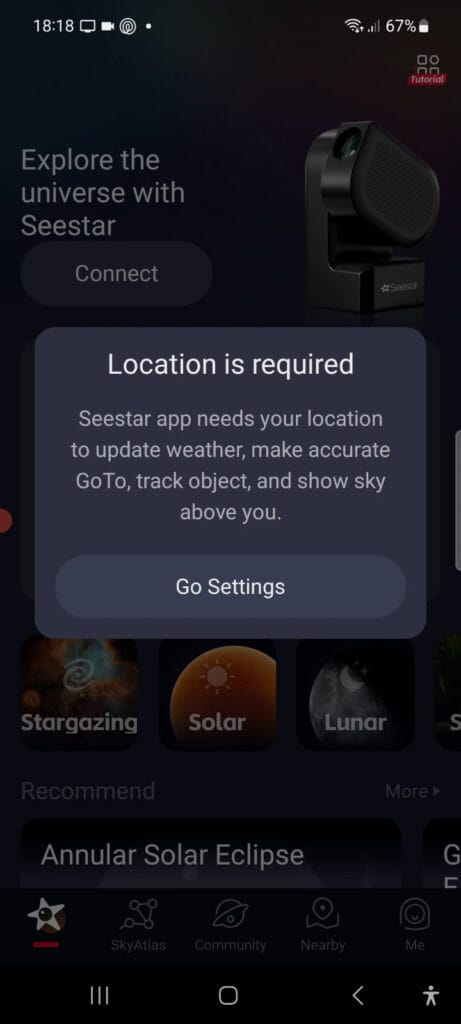
After opening, a notification appears asking the app for permission to use your location to use.
Why it matters:
the Seestar uses your location to accurately target celestial objects, make the GoTo function work correctly and display current weather information.
2 - Give the app the appropriate permissions
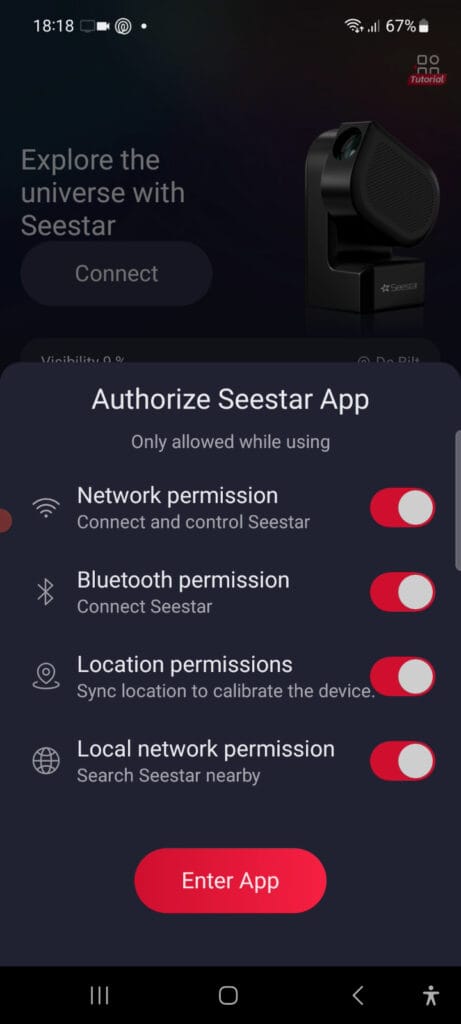
Next, the app asks for various permissions: network, Bluetooth, location and local network.
Set all sliders to on - these are needed to detect and control the telescope.
3 - Connecting to the Seestar S50
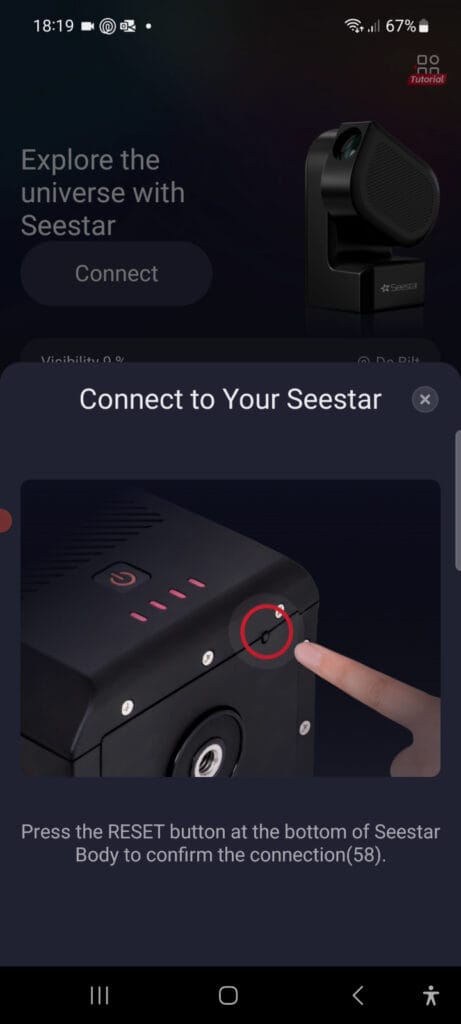
Once the app detects the telescope, the message appears “Connect to your Seestar”.
Briefly press the reset button on the underside of the telescope to secure the connection.
Within seconds, your Seestar's Wi-Fi signal will appear on your phone.
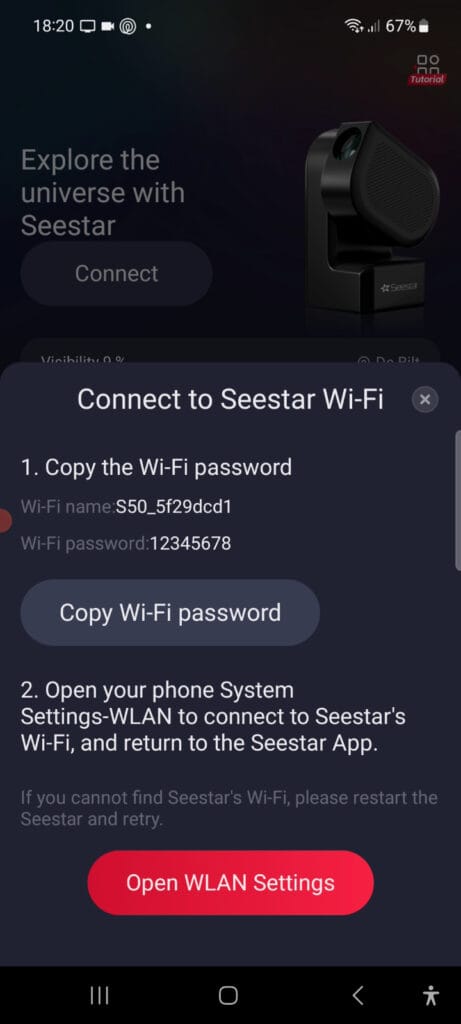
4 - Connect to the Seestar's Wi-Fi signal.
The app now automatically displays the Wi-Fi network name and password.
Copy the password (default: 12345678) and open your phone settings to connect to the network beginning with “S50_”.
Then return to the Seestar app, the connection will be recognized immediately.
5 - Check the connection and battery status
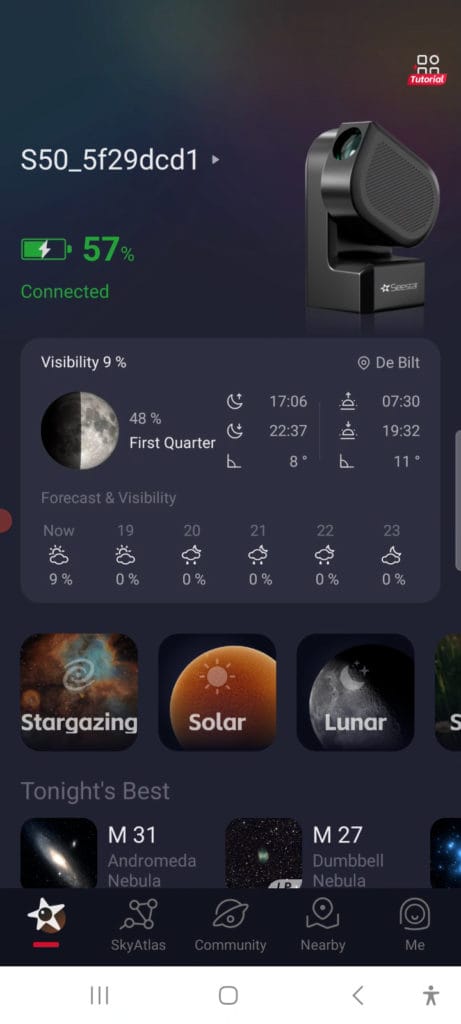
When the connection is successful, the app shows the active Wi-Fi channel, battery status and your location.
The current moon phase and weather forecast also appears here, so you can immediately see if it is clear enough to observe.
6 - Performing firmware update
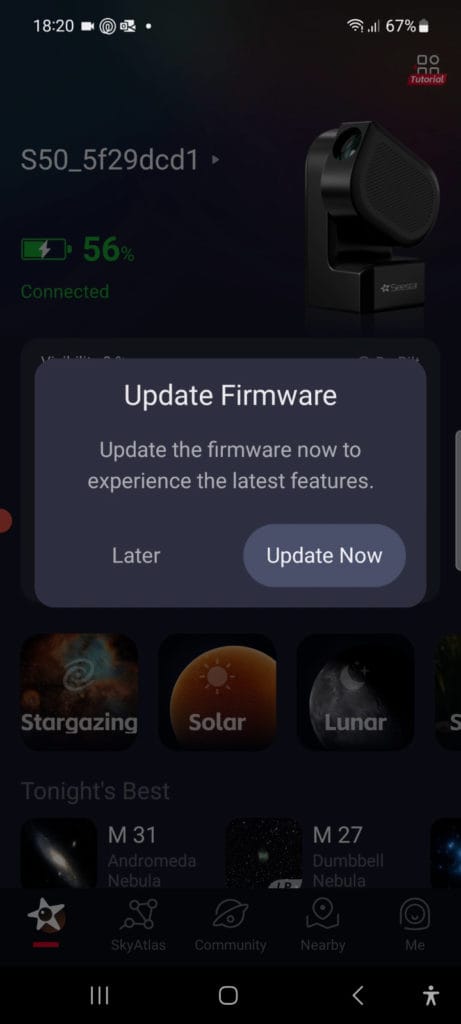
On initial pairing, the app usually asks for a firmware update.
Tap ‘Update Now’ and wait until the yellow light on the Seestar is steady - that means the update is complete.
Afterwards, the message appears ‘Connected’ and you can move on.
7 - Leaving the Seestar level (leveling).
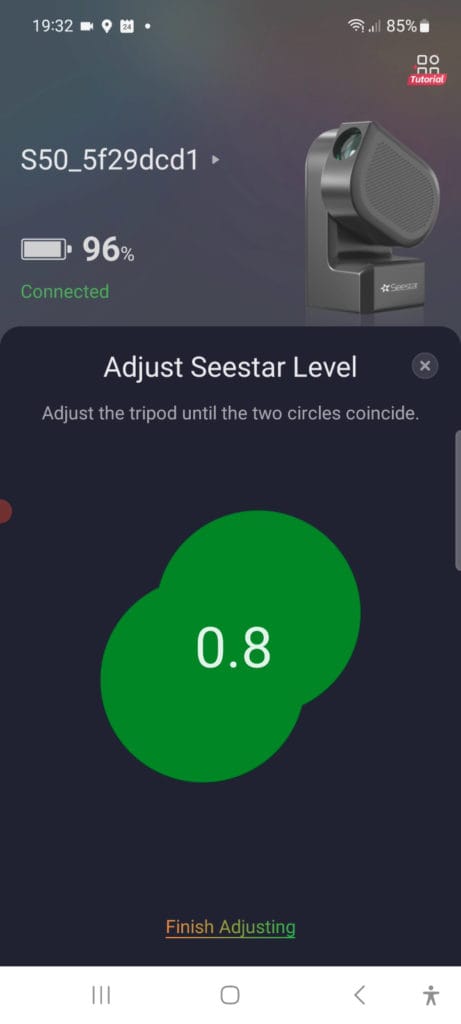
Before taking the first shot, the telescope should be spirit level stand.
The app shows two green circles with a number - the closer they overlap, the better.
Use the tripod legs to correct to the value ≤ 1,0 is.
8 - First look inside the app: objects and mode selection
Once setup is complete, you will enter the main screen with the four observation modes:
Stargazing, Solar, Lunar and Scenery.
Choose the mode that suits what you want to observe.
The app automatically displays the best objects of the evening, including visibility and recommended settings.
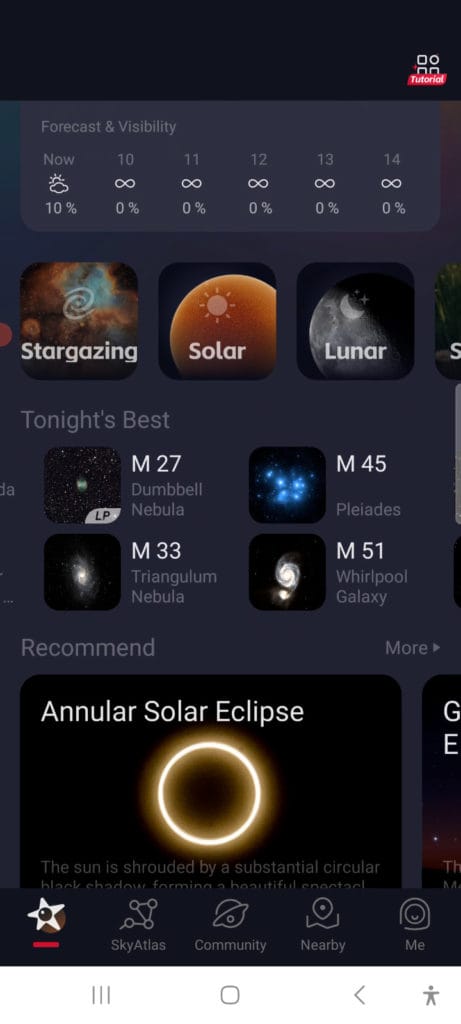
9 - Choose your first goal in ‘Tonight's Best’
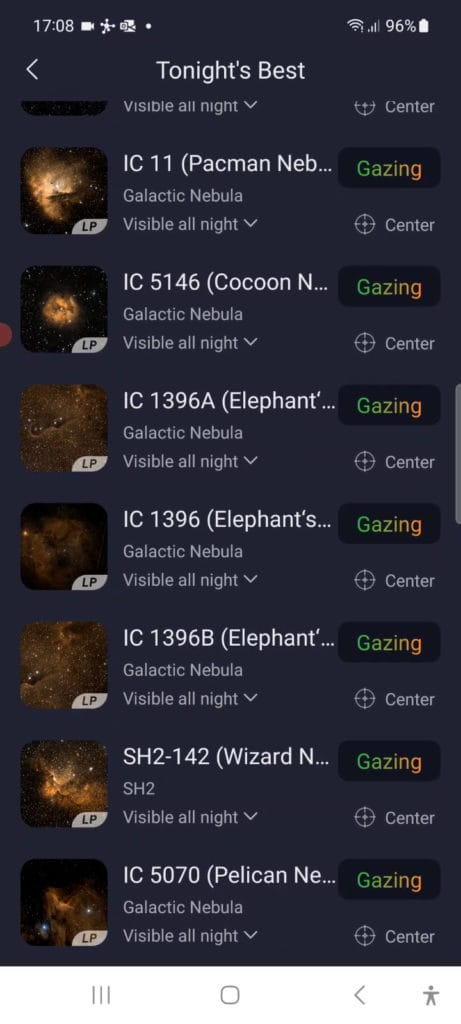
Tap an object in the list, for example M 27 (Dumbbell Nebula) or M 45 (Pleiades) - and press ‘Gazing’.
The telescope automatically moves to the correct point in the sky and starts aiming via platesolving.
After a few seconds, you will see the object appear on your screen, ready to capture.
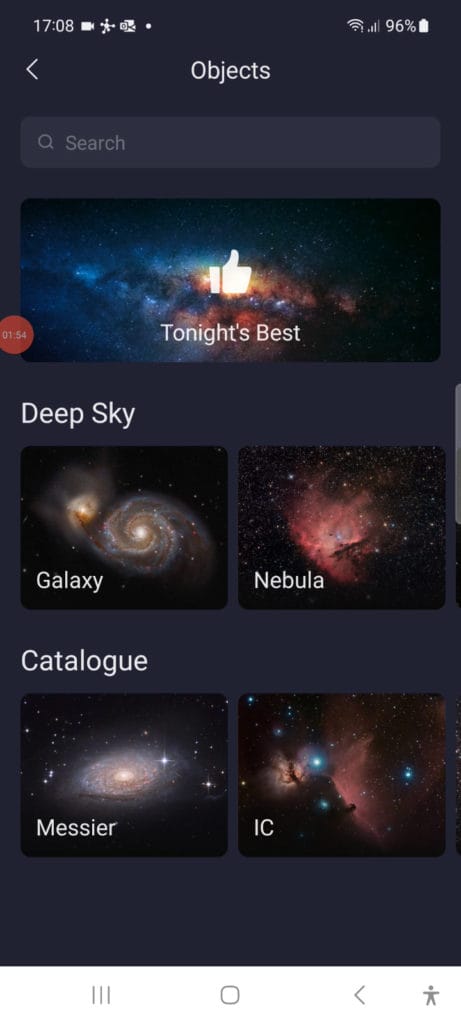
10 - Ready for your first shot
The Seestar S50 is now fully paired, aligned and level.
From here you can start photographing the Moon, the Sun (with filter) or the first deep-sky objects in the list.
In the next part of this blog, we'll discuss settings, exposure times and stacking techniques that will help you, as a beginner or advanced photographer, get even more out of the Seestar.

Once your Seestar S50 is paired and level, the interesting part begins. Now it comes down to patience, insight and small actions that dramatically improve image quality. This telescope is smart, but not magic: those who understand what goes on under the hood will visibly get more out of it.
Seestar s50 tips: Allow the telescope to warm up
The Seestar seems ready for use immediately, but even a fully automated system takes time to physically stabilize. Glass, metal and electronics react to temperature differences. Therefore, put the telescope outside fifteen minutes beforehand. During that time, lenses and housing draw flush with ambient temperature. This prevents subtle air currents inside that affect sharpness.
Those who start too early will see that stars appear soft or slightly distorted. This is not due to the software, but to temperature. Give it that rest, you can already see the difference with the first stack.
Seestar s50 tips: Check level before you start
The app shows two circles with a deviation in degrees. The smaller that value, the better the automatic tracking works. A deviation of more than one degree causes your object to slowly move out of focus. In short sessions you hardly notice this, but after twenty minutes of stacking you see it immediately as a slight distortion in the stars.
Get into the habit of rechecking the tripod every session. Even if you haven't moved it: temperature and surface change through the night. A small correction to one tripod leg can save the sharpness of an entire shot.
Seestar s50 tips: Understand what stacking does - and what it doesn't do
Live stacking is the heart of the Seestar S50. Every ten seconds, the telescope takes a new image, and all those frames are overlaid by software. Noise disappears, details slowly emerge. It is tempting to stop as soon as the object becomes visible, but the real difference only appears after thirty to sixty minutes.
This has to do with signal-to-noise ratio: the more frames, the more consistent light the software can recognize. Especially for faint nebulae, such as the Veil Nebula(NGC 6960, NGC 6974, NGC 6979, NGC 6992, NGC 6995 and IC 1340), you can only see the structures become clear after half an hour. The app shows the total exposure time at the top right; use that as a reference, not the first result.
A useful habit: leave the telescope running for at least half an hour while you do something else. Check occasionally to see if the tracking is still stable, but don't touch the telescope. Every touch vibrates through into the image.
Seestar s50 tips: Use the internal light pollution filter consciously
The Seestar has an internal LP filter that attenuates yellow and orange light from streetlights. That filter jumps on automatically for emission nebulae, but you can also turn it on or off manually in the app. In urban environments, this makes a world of difference: the background darkens and the nebula colors deepen.
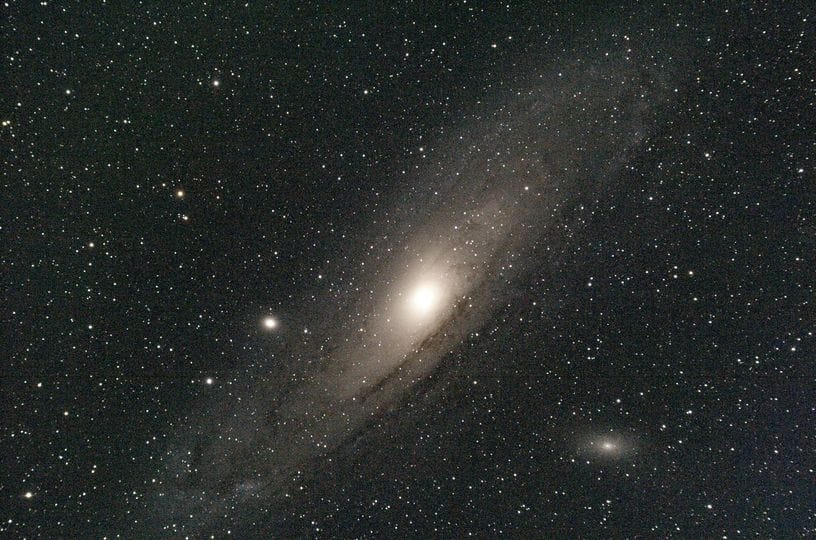
Yet it is not always desirable. Galaxies like Andromeda emit light across the spectrum; an active filter cuts valuable data from that. If you notice that stars appear dull or colors become unnatural, turn off the filter.
Learn to recognize the visual cues in your image instead of blindly relying on the automatic settings, which distinguishes the user from the operator.
Seestar s50 tips: Small adjustments, big effect: exposure and gain
Automatic mode does a fine job, but if you shoot consistently, it pays to control exposure and gain manually. In the app, open the Pro Mode and see how your settings affect each other. A lower gain on bright objects prevents stars from burning out; a slightly higher value on nebulae brings out faint details without extra noise.
IMPORTANT: Remember that the Seestar uses an alt-az mount. This limits the maximum exposure per frame to ten seconds, longer results in field rotation, with stars slowly rotating in the edges of the image. This is not an error, but a consequence of the way the telescope tracks the sky.
Those who understand where that boundary lies get more out of stacking than those who continue to rely on automatic exposure.
Seestar s50 tips: Stability is more important than accessories
The tripod provided is light and practical, but in windy conditions or on balconies with vibrations, the image may deteriorate noticeably. Use a decent photo tripod or hang a small weight from the center. A bag with some sand or a bottle of water works very well.
The surface also matters: grass dampens small vibrations better than concrete. Keep the legs wide and make sure they are not on loose tiles. Vibrations you don't see do show up as subtle star streaks when stacked.
The internal battery lasts about six hours. During a long session, you quickly consume thirty percent per hour, especially on cold nights. Connect a powerbank to at least 10,000 mAh; rather too much than having your session end abruptly in the middle of a stack.
Seestar s50 tips: The power of filters and when not to use them correctly
One of the most underrated components of the Seestar S50 is the internal filter system. The telescope features an integrated light pollution filter (LP) which is automatically activated on objects that emit light primarily in narrow color regions, such as emission nebulae.
It sounds abstract, but the effect is immediate: the background of your image darkens, while the haze appears brighter. The filter blocks wavelengths of artificial light (such as sodium and mercury lamps) and allows the emission lines of hydrogen (Hα) and oxygen (OIII) virtually unhindered. As a result, nebulae such as the Rosette Nebula, Orion Nebula and the Veil Nebula rendered much more contrasty, even in the middle of the city.
Still, this is not a filter for everything. For objects with a broad light spectrum, such as galaxies (M31, M81) or open clusters, the LP filter actually cuts off valuable light information. In those cases, turn it off manually via the app; you can recognize the filter status by the small LP icon in the upper right corner of the screen. Green means active, gray is disabled.
Those who want to go further can also experiment with external filters via the Seestar's magnetic holder. A duo-narrowband filter (Ha + OIII) is ideal for emission nebulae under moderate light pollution, while a CLS filter (City Light Suppression) which is broader and especially helpful in urban environments.
A practical reminder:
- Bright emission nebulae = internal LP filter on (or duo-narrowband)
- Galaxies and clusters = LP filter off
- Sun and Moon = use only the supplied solar filter, never a visual filter
The right choice of filter saves more than post-processing can ever fix. It determines whether you see nebular structures or just a blur.
Seestar s50 tips: Think ahead when storing and post-processing
After each session, the app automatically saves a JPG on your phone, but the real value is in the additional files.
The telescope also makes a 16-bit TIFF to: that's the fully stacked version, suitable for post-processing on your laptop. Connect the Seestar via USB-C; in the folder myworks you will find all the files, including any RAW (AVI)-videos of the Moon or Sun.
Use software such as Siril or AstroPixelProcessor to neutralize the background and subtly correct color differences. Even simple noise reduction brings out additional texture.
Those who do this once find that the Seestar is more than a “smart telescope,” it is a stepping stone to real astrophotography.
Seestar s50 tips: Know what can and cannot be done
The Seestar S50 has a focal length of 250 mm and an angle of view of 1.3 by 0.7 degrees. This is ideal for large objects such as the Andromeda Nebula or the Veil Nebula, but too short for planetary photography. Jupiter and Saturn appear as tiny dots with their moons visible, but without detail.
So don't expect close-ups of planetary rings or textured moon craters. The strength of the Seestar lies in widescreen deep sky and the simplicity with which you get results that would otherwise take hours of work with traditional setups.
By understanding what the system can do, you avoid frustration and can use each session for what it is: quietly watching light that has been on the road for hundreds or thousands of years.
Advanced workflows for those who want to go further
Once you understand how stacking and filters work together, you can use the Seestar S50 as a full-fledged astro camera. The power is not in additional accessories, but in what you do with the existing data.
A good starting point is the TIFF files that the telescope automatically saves. These are 16-bit and contain much more light information than the standard JPGs on your phone. Import them into a program like Siril, AstroPixelProcessor or PixInsight and apply three simple operations:
- Background extraction removes the slight glow of light pollution;
- Histogram stretch pulls the nebulae forward without overexposing the stars;
- Sharpness and color balance correction small adjustments that make the photo more vibrant, without excessive editing.
For longer sessions (more than an hour), sometimes field rotation at the edges. That's part of the alt-az mount. Cut away the outer 5-10% from the image in post-processing, and you retain a perfectly centered result. Many users think there is something “wrong” with their tracking, when in fact this is a normal optical effect.
If you want to go even further, experiment with manual gain sets in Pro Mode. For example, take three shots of the same object with a gain of 80, 90 and 100, and later combine them into an HDR-like image. This way you create extra depth without overexposing.
The Seestar S50 is not a replacement for a full astrophotography platform with equatorial mount, but a powerful learning tool. It shows you in real time how exposure, filters and post-processing work together. If you understand that logic, you will naturally start taking better pictures, even with more expensive equipment.
A sober conclusion
The Seestar S50 rewards those who have patience. The better you understand what the software is trying to do and where the limits are the more consistent your results will become. Let the telescope do its job, but remain your own director. Hopefully you learned something from our Seestar s50 tips!
Want to delve deeper? Then check out the Seestar S50 product page For bundles, filters and accessories.
For current celestial phenomena: NASA Skywatching Highlights. No Seestar S50 yet, but got excited by this blog full of Seestar s50 tips? Add it directly to your shopping cart below!
- Price range: 4.499,00 through 4.699,00 Select options This product has multiple variants. The options may be chosen on the product page
- Price range: 199,00 through 299,00 Select options This product has multiple variants. The options may be chosen on the product page


 Dutch
Dutch English